
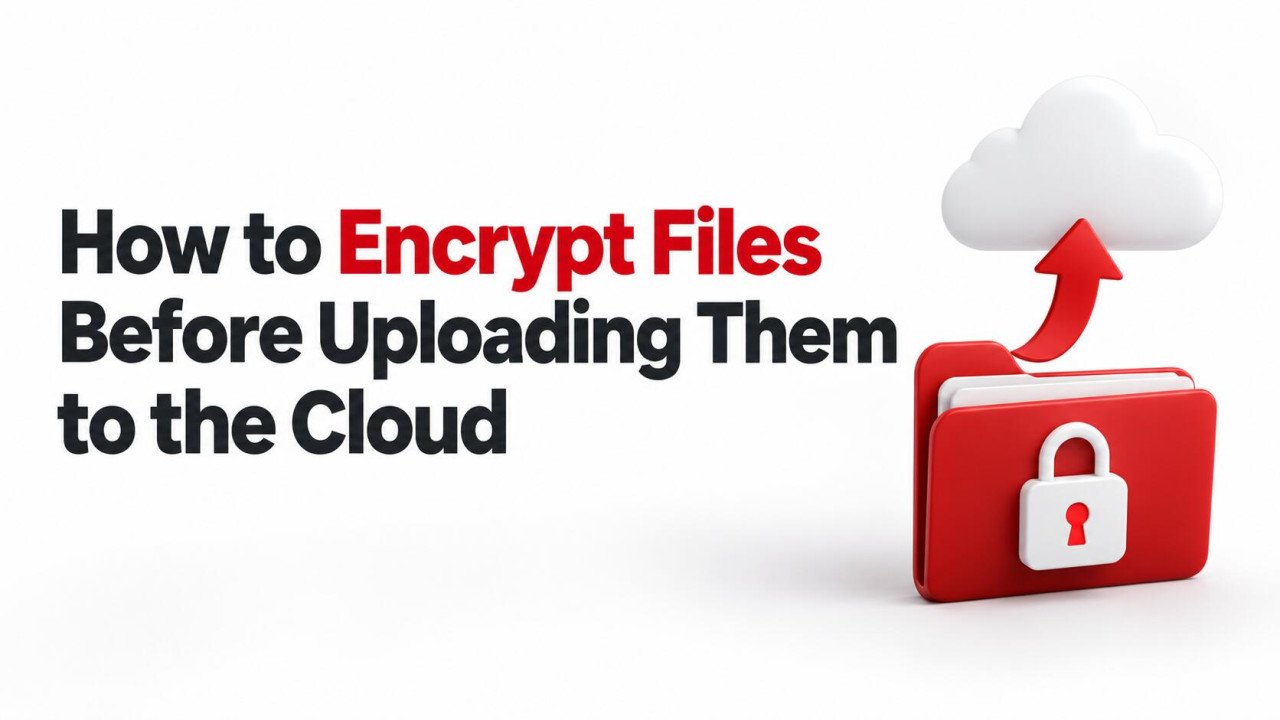
How to Encrypt Files Before Uploading Them to the Cloud
Cloud storage makes documents easy to reach, but some files deserve an extra layer of privacy. Customer records, contracts, financial spreadsheets, and personal identification documents can contain information you do not want exposed through an incorrectly shared link or a compromised account.
To encrypt files before uploading them to the cloud, use a trusted local encryption tool, protect the password or recovery key, and upload only the encrypted output. Before relying on the result, download a test copy and confirm that you can decrypt and open it.
You do not need to understand advanced mathematics to follow this process. You do need to choose an appropriate method and keep careful track of which files are encrypted, where the originals remain, and how you will recover access.
What Does Encrypting Before Upload Mean?
Client-side encryption transforms readable information into encrypted data on your device before that data reaches the storage provider. The cloud receives the encrypted version, while you control the information needed to unlock it.
This differs from encryption during transmission, which protects the connection, and provider-managed encryption at rest, which protects stored data using the provider's key-management system. Those protections are useful, but they do not necessarily prevent the provider from accessing file contents.
Encrypting on your device also differs from setting a password on a download link. Link protection controls access through a service; file encryption protects the file's contents after someone obtains a copy.
Do not assume every password feature performs strong encryption. A document editing restriction, for example, may limit changes without meaningfully protecting confidential contents.
1. Choose a Method That Fits Your Workflow
Two practical options are an encrypted archive for occasional uploads and an encrypted vault for files you regularly open or update.
| Method | Useful for | Main consideration |
|---|---|---|
| Encrypted archive | Sending or storing a completed collection of files | Recipients need compatible software and the correct password. |
| Encrypted vault | Maintaining private working files in a synced folder | You must distinguish the encrypted storage folder from the unlocked view. |
An archive is convenient for a finished project package. A vault is often more manageable for a folder you edit throughout the week. Start with non-sensitive sample files so you can learn the process without risking important documents.
Download software from its official website or a trusted distribution channel. For sensitive material, prefer a local application whose behavior you understand instead of uploading readable files to an unfamiliar online encryption website.
2. Prepare Your Files Before Encryption
Collect the files you actually intend to store or share. Remove unrelated drafts and check that documents open correctly. Encryption cannot repair a damaged file or correct an incomplete export.
Use a local working folder that is not automatically synchronized to the cloud. Otherwise, the readable originals may upload before you finish creating the encrypted version. Check whether Desktop and Documents folders are included in automatic backup or sync settings.
Keep a protected backup while you test. Do not delete the only usable originals immediately after creating an archive. Record which application and format you used so a future recipient or administrator knows how to open it.
3. Create an Encrypted Archive With 7-Zip on Windows
7-Zip supports AES-256 encryption in its 7z format. AES is an established encryption standard, but protection still depends on your password and how you handle the resulting file.
For a straightforward archive workflow on Windows:
- Install a current version of 7-Zip from its official website.
- Open 7-Zip File Manager and select your files or folder.
- Click Add to open the archive settings.
- Set Archive format to 7z.
- Enter and confirm a strong, unique password in the encryption section.
- Confirm AES-256 as the encryption method.
- Enable Encrypt file names.
- Choose a suitable output location and create the archive.
Filename encryption hides the names inside the archive until it is unlocked. The outer archive name remains visible, so choose a neutral name such as project-package.7z instead of including sensitive client details.
Close the application, reopen the archive, and test extraction into a separate local folder. Confirm that the password works and that the extracted documents are readable. Upload the .7z file, not the original folder or the extracted test copy.
4. Use an Encrypted Vault for Regular Cloud Work
Cryptomator provides a vault-based approach. Its desktop application encrypts files locally, while your cloud provider's sync application transfers the encrypted data. Cryptomator is not itself the desktop synchronization service.
A basic setup follows this sequence:
- Install Cryptomator and configure your cloud storage's sync application.
- Create a new vault and choose a location for its encrypted data inside the cloud-synced folder.
- Set a strong password and preserve the recovery key offered by the application.
- Unlock the vault to access its readable drive or folder view.
- Copy your documents into that unlocked view.
- Close documents, lock the vault when finished, and confirm synchronization completes.
The distinction between the two locations matters. Work through the unlocked view; let the cloud client synchronize the encrypted backing folder. Do not separately synchronize or manually upload the readable view.
Keep the complete encrypted vault structure, including its configuration files. Do not rename or rearrange its encrypted internal files by hand. Test opening the synced vault on another supported device before depending on it for important work.
For a shared team workflow, check the tool's collaboration guidance and avoid simultaneous changes that could create synchronization conflicts.
5. Choose Strong Passwords and Preserve Recovery Access
Use a long, unique password generated by a trusted password manager, or a long passphrase made from randomly selected words. Avoid company names, birthdays, familiar quotations, and passwords already used for email or cloud accounts.
Someone who obtains an encrypted archive may try password guesses offline. Your cloud account's login limits do not protect that downloaded copy from guessing attempts. This makes password strength important even if the account itself is well secured.
Store the password somewhere protected and accessible during an emergency. Do not keep its only copy inside the encrypted archive it unlocks or place an unprotected password note beside the cloud file.
Recovery features vary. Cryptomator can use a saved recovery key to reset a forgotten vault password. Treat that key as highly confidential. A standard password-encrypted 7z archive has no comparable built-in recovery key, so do not expect a cloud provider to reset its password.
For business files, establish who may recover access if the owner is unavailable. Test that process without exposing credentials to people who do not need them.
6. Upload Only the Encrypted Version
Before uploading, inspect the selected filename and location. Similar folder names make it easy to choose a readable original instead of the encrypted output.
For an archive, upload the completed encrypted file after it has been created and tested. For a synced vault, confirm that the cloud application is transferring the encrypted storage directory and that no files remain pending.
If you use Sooddy to upload and share files, check its current file-type, size, retention, and sharing rules before transferring an encrypted package. Encryption adds content protection, but it does not replace choosing a service appropriate for your information.
Restrict link access where supported and share only with intended recipients. Keep encryption passwords out of public descriptions, filenames, and download-page notes.
7. Download and Test Recovery
A successful upload indicator does not prove you can recover your documents. Test the complete journey using a copy downloaded from the cloud rather than relying only on the local archive.
- Download the encrypted archive or fully synchronize the complete vault.
- Open it using the intended application and stored credentials.
- Extract or access several representative files.
- Check document contents, images, and any required attachments.
- Confirm that someone authorized can follow the recorded instructions.
For an archive, test that an incorrect password cannot extract the contents. If filename encryption was enabled, verify that the internal names are hidden before unlocking. Use a fresh application session so a remembered password does not confuse the test.
Document the result and retain a separate backup. Encryption protects confidentiality; it does not prevent a cloud file from being deleted, corrupted, or made unavailable.
8. Share Passwords Through a Separate Protected Channel
Recipients need both the encrypted file and a way to unlock it. Send the file link through one channel and use a separate, verified communication method or controlled password-manager sharing for the secret.
Sending the password in another message to the same inbox offers limited separation if that inbox is compromised. Confirm the recipient's identity and choose a channel appropriate to the material.
Use different passwords for separate client packages. A reusable company-wide archive password makes it difficult to limit access if one recipient accidentally discloses it.
Once a recipient has decrypted and saved the contents, changing a link or archive password cannot retrieve those copies. Agree on handling and retention expectations before distributing sensitive documents.
What Encryption Does Not Hide or Prevent
Encryption does not make cloud activity invisible. A provider may still observe account details, transfer times, and storage usage. The visible metadata depends on the method: an archive exposes its outer name and size, while vault systems can reveal additional structural information.
Cryptomator, for example, encrypts file contents and names but does not hide all metadata, including stored file sizes and timestamps. Review the tool's security documentation if these details are sensitive.
Unlocked files are readable on your device. Malware, compromised accounts on that device, or applications creating temporary copies can expose information outside the encrypted storage. Keep software updated, secure the device, and lock vaults when you finish.
Continue using multi-factor authentication on your cloud account. File encryption and account protection address different risks and work best together.
Common Mistakes to Avoid
- Assuming compression means encryption: A normal ZIP or 7z archive may have no password protection at all.
- Uploading originals first: Encrypting a later copy does not remove earlier cloud versions or existing shared copies.
- Forgetting readable leftovers: Extracted test files, exports, and temporary working copies need appropriate protection.
- Discarding recovery information: Strong encryption cannot distinguish an authorized person who forgot the password from anyone else.
- Deleting the only backup: Keep recoverable copies until your new workflow has been verified.
If unencrypted files were already uploaded, review their sharing settings and the provider's version and deletion controls. Removing the visible file does not necessarily remove retained copies immediately, so check the service's documented behavior.
A Practical Example for a Small Business
Imagine a consultant preparing a completed project package for a client. The consultant collects the final files in a local folder outside automatic cloud sync, creates a password-encrypted 7z archive with filename encryption, and tests extraction.
Next, the consultant uploads the encrypted archive, downloads a fresh copy, and confirms the documents open correctly. The client receives the download link and compatible-software instructions. The password is shared separately through an agreed protected method.
The consultant retains a protected backup and records where recovery credentials are stored. For frequently edited private working documents, the same business could use an encrypted vault instead of rebuilding an archive after every change.
Frequently Asked Questions
Should I encrypt files if my cloud provider already uses encryption?
It depends on your privacy needs. Provider-managed encryption protects storage and transmission, but the provider may control the decryption keys. Encrypting locally can add protection against access to file contents through the storage service, provided you keep the keys separate and secure.
Is a password-protected ZIP file secure?
The encryption method matters. Legacy ZipCrypto is weaker than modern AES-based archive encryption. Check the tool's settings and recipient compatibility rather than relying on the word “password.” The 7z workflow above uses AES-256 and supports encrypting internal filenames.
Can I preview encrypted documents in my cloud browser?
Usually, a provider cannot render ordinary previews of client-side encrypted files without access to decrypted contents. You typically open them through the encryption application on your device. Consider this tradeoff before encrypting files used for browser-based collaboration.
What happens if I forget the encryption password?
A supported recovery key or an authorized backup of your credentials may restore access. Without either, recovery may be impossible. The cloud account's password-reset process generally cannot unlock a separately encrypted archive or vault.
Does encryption reduce the quality of photos or videos?
No. Proper encryption and decryption preserve the original file contents. Lossless archive compression also preserves them. Quality loss would come from a separate action, such as converting or re-encoding media, rather than from encryption itself.
Build a Repeatable Encryption Routine
A dependable routine is to prepare files locally, encrypt them, secure the recovery details, upload only encrypted data, and test a download. Choose an archive for occasional packages or a vault for ongoing work, and keep a separate backup so privacy does not come at the expense of recoverability.
No comments yet. Be the first to join the conversation.