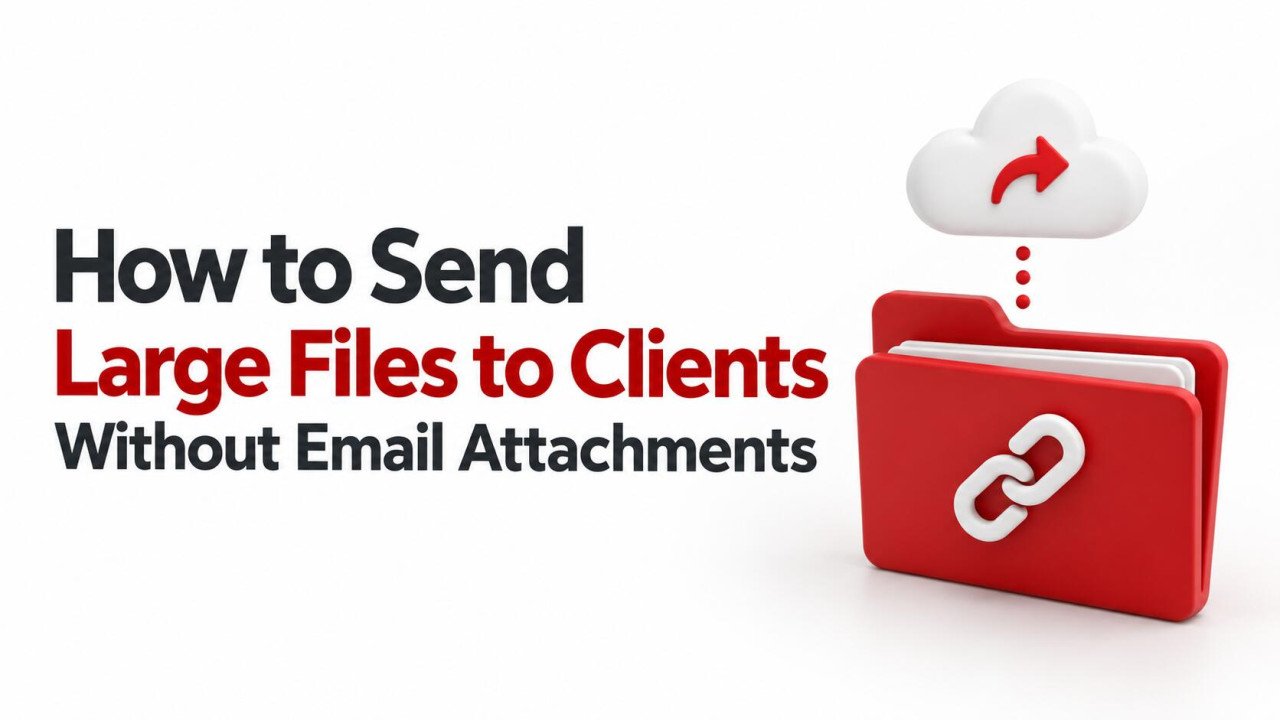
How to Send Large Files to Clients Without Email Attachments
A finished video, a folder of product photographs, or a complete design package can quickly become awkward to send by email. Attachment limits vary, messages may be rejected, and repeated versions can leave the client unsure which copy to use.
The practical alternative is to upload the files to an appropriate service and send a download link. You can still use email to explain the delivery, but the files themselves travel outside the email system. This guide explains how to send large files to clients without email attachments while keeping the process clear, organized, and suitable for the material you are sharing.
Choose Between a Finished Delivery and Ongoing Collaboration
Before choosing a service, decide what the client needs to do. Downloading an approved video is different from reviewing a document that will change several times.
For a finished delivery, aim for a clearly labeled package that represents one specific version. For ongoing work, a shared folder or project workspace may be more useful because it can hold revisions and supporting material.
For example, Dropbox describes its Transfer feature as a way to deliver files that do not require collaboration. Its documentation also explains that recipients can download a transfer without a Dropbox account. That is one example of a delivery workflow; other services may have different recipient requirements.
| Method | Useful for | Check before sending |
|---|---|---|
| File-hosting download link | Sharing individual files or prepared packages | File limits, retention, access controls, and the download experience |
| Dedicated transfer service | Delivering a finished version for the client to save | Transfer size, expiry, recipient requirements, and password availability |
| Shared cloud folder | Reviewing several files or maintaining an ongoing project | Folder permissions, editing rights, version handling, and external access |
| Client-provided portal | Working with an organization that has an established delivery process | Accepted formats, upload instructions, and confirmation of receipt |
Start with the client’s existing process when possible. A familiar, approved destination can prevent access problems caused by unfamiliar websites or company network restrictions.
1. Confirm What the Client Actually Needs
A successful handover begins before the upload. Confirm the expected formats, the delivery deadline, and who should receive the files. Find out whether the client needs editable sources, ready-to-use exports, or both.
A marketing contact may only need a presentation PDF, while their design team also needs the original artwork. Sending both without labels can create confusion. Place them in separate folders and explain which version is intended for everyday use.
Also confirm any practical limitations. The recipient might be using a phone, have limited local storage, or be unable to open external sharing sites on a work computer. Discovering that early is easier than solving it minutes before a deadline.
2. Prepare a Clean Delivery Package
Create a dedicated delivery folder containing only the approved material. Keep internal notes, earlier drafts, supplier quotations, and unrelated client work outside it.
- Use meaningful filenames: Client-Campaign-Video-v03.mp4 is clearer than final-final-new.mp4.
- Separate file purposes: Use folders such as Ready-to-Use, Editable-Sources, and Instructions.
- Include a short readme: Explain the contents, required software, and any agreed usage instructions.
- Check the exported files: Open the actual deliverables instead of relying only on the working originals.
- Record the total size: This helps the recipient plan storage and download time.
A ZIP archive can keep many related files together. However, a single huge archive also means the client may need to download everything to retrieve one item. For a mixed delivery, separate the main deliverable from optional source files.
Leave enough room for extraction. Downloading an archive and unpacking it can temporarily require space for both the archive and its extracted contents.
3. Preserve Quality Without Unnecessary Conversion
Sending a large file does not automatically require reducing its quality. If the recipient needs the original resolution or editable source, choose a delivery method that supports the file as it is.
Lossless compression allows the original data to be reconstructed exactly. ZIP is useful for packaging and may reduce some file sizes, but already compressed videos and photographs often shrink very little.
Lossy conversion is different: lowering video bitrate or image quality can discard information. Use it only when the client agrees that the smaller version meets the delivery requirements.
Keep review copies separate from final files. For example, label a lightweight video as Review-Preview and place the original export in Final-Delivery. A browser preview may look different from a downloaded original, so judge the delivered file itself when quality matters.
4. Check the Service’s Limits Before Uploading
Check the maximum individual file size, total transfer allowance, available storage, and retention period. A service can accept one large file but still limit the total package or how long the download remains available.
For a file-hosting workflow, you can review Sooddy as a place to upload files and obtain sharing links. Check the controls and limits shown for your current upload and account before choosing it for a client delivery.
Also inspect the recipient experience. Determine whether clients must register, enter a password, complete a verification step, or follow a particular download process. Explain any necessary steps in advance.
For confidential material, use a service and account configuration approved for that information. The ability to generate a link does not by itself establish suitable privacy or access controls.
5. Upload with Enough Time for a Retry
Use a stable connection, keep your device powered, and follow the service’s instructions about leaving the upload page open. Avoid scheduling a large transfer immediately before the client needs it.
A useful estimate is file size in megabits divided by upload speed in megabits per second. For example, a 2 GB file contains approximately 16,000 megabits using decimal units. At a steady 20 Mbps upload speed, the theoretical transfer time is about 13 minutes and 20 seconds. Real transfers can take longer because of overhead, changing network conditions, and service processing.
Upload speed is the relevant figure for sending; your internet plan’s advertised download speed may be very different. Allow additional time to test the finished upload and fix any mistakes.
6. Set the Right Access Permissions
Choose the audience and the allowed actions separately. A client who needs to download finished work usually does not need permission to change your stored originals.
Google Drive, for example, distinguishes restricted access from access for anyone holding a link, and provides different roles for viewing, commenting, and editing. Use the equivalent controls available in your chosen service.
- Named recipients: Useful when access should belong to specific client contacts.
- Anyone-with-link access: Appropriate only when the possibility of forwarding is acceptable.
- Passwords: An additional barrier where supported; share the password through a separate trusted channel.
- Expiry: Set a realistic download window and tell the client when it ends.
Check that downloading is allowed when the purpose is file delivery. A view-only role and a download restriction are not necessarily the same setting. Also inspect the surrounding folder so you do not accidentally expose other material.
Password and expiry features depend on the service and plan. Neither retrieves copies already saved by the recipient, and a shared password can be forwarded along with the link.
7. Test the Link as a Recipient
Copy the generated sharing link and open it in a signed-out browser session. This helps reveal whether anonymous access is allowed and whether the page works without your owner login.
For restricted sharing, confirm that the intended client account has access. A signed-out test alone cannot prove that every permission is correct. Check the following before sending:
- The link opens the intended file or delivery folder.
- The client can complete the required access steps.
- The download includes the correct version and expected contents.
- Files open correctly after downloading or extraction.
- The shared location contains no unrelated client or internal material.
For especially important deliveries, compare the downloaded copy with your original. Technical teams may also use a checksum to check whether the file changed during transfer. Ordinary client deliveries often need only a successful download and content check.
8. Send a Clear Delivery Message
A bare link makes the client do unnecessary detective work. Include the project name, contents, total size, access instructions, and any deadline. Use a recognizable service address rather than obscuring the destination with an unfamiliar shortened link.
Here is a message you can adapt:
Subject: Spring Campaign — final files ready
Hi Alex,
The final campaign files are ready at [download link]. The package includes the approved video, product images, and a PDF guide, totaling approximately 2 GB.
Please use your agreed work email address if prompted to sign in. The link is available until 17:00 UTC on [date]. Let me know once you have downloaded and opened the files, or if you need help accessing them.
Thank you,
Your name
Adjust the message to match the actual settings. Do not promise an expiry date, sign-in method, or package content that you have not checked.
9. Confirm Receipt and Keep a Delivery Record
Ask the client to confirm that the files downloaded and opened successfully. A link click or download notification can be useful, but it does not prove the client reviewed or approved the work.
Record the delivered version, date, link, recipient, and agreed availability period. If you later send a correction, identify what changed and which previous version it replaces.
Keep an independent backup of final deliverables. A transfer link is a delivery route, not a promise of permanent storage. After the agreed period, review access and remove temporary permissions where appropriate.
Common Problems and Practical Fixes
The client sees an access error: Check the invited email address and ask which account they are using. Do not automatically make a confidential folder public to resolve a login problem.
The download is too large: Offer separate packages for essential files and optional sources. Avoid splitting archives into numbered parts unless the client is comfortable reconstructing them.
The website is blocked: Ask for the client’s approved delivery portal or involve their IT contact. Use a permitted destination rather than trying to bypass company controls.
The file will not open: Check whether the download completed and whether the recipient has suitable software. When appropriate, provide a compatible export alongside the original.
Frequently Asked Questions
1. Can I still use email to send the download link?
Yes. Email can carry the link and delivery instructions without carrying the large file itself. You can also share the link through an agreed messaging service or project portal.
2. Will uploading a file reduce its quality?
A transfer that preserves the original file does not require quality reduction. Check whether your service offers the original download or performs a conversion. Do not judge original quality solely from a browser preview.
3. Does my client need an account?
That depends on the service and sharing settings. Some delivery links work without registration, while restricted access may require sign-in or verification. Check this before choosing the delivery method.
4. How long should a client download link remain active?
Agree on a period that fits the project and the client’s availability. For example, a two-week window might suit a routine handover, but holidays or internal review can require longer. State the deadline and time zone clearly.
5. Is a password-protected link enough for sensitive files?
It may provide an extra barrier, but it does not cover every security need. Consider recipient verification, encryption, account protection, and the client’s requirements. Use an approved service with controls appropriate to the information.
Make Large-File Delivery Easy to Follow
Prepare the correct files, choose a suitable destination, configure access, and test the download. Then send a clear message and confirm receipt. These steps turn a large upload into a delivery the client can recognize, access, and use.

No comments yet. Be the first to join the conversation.