
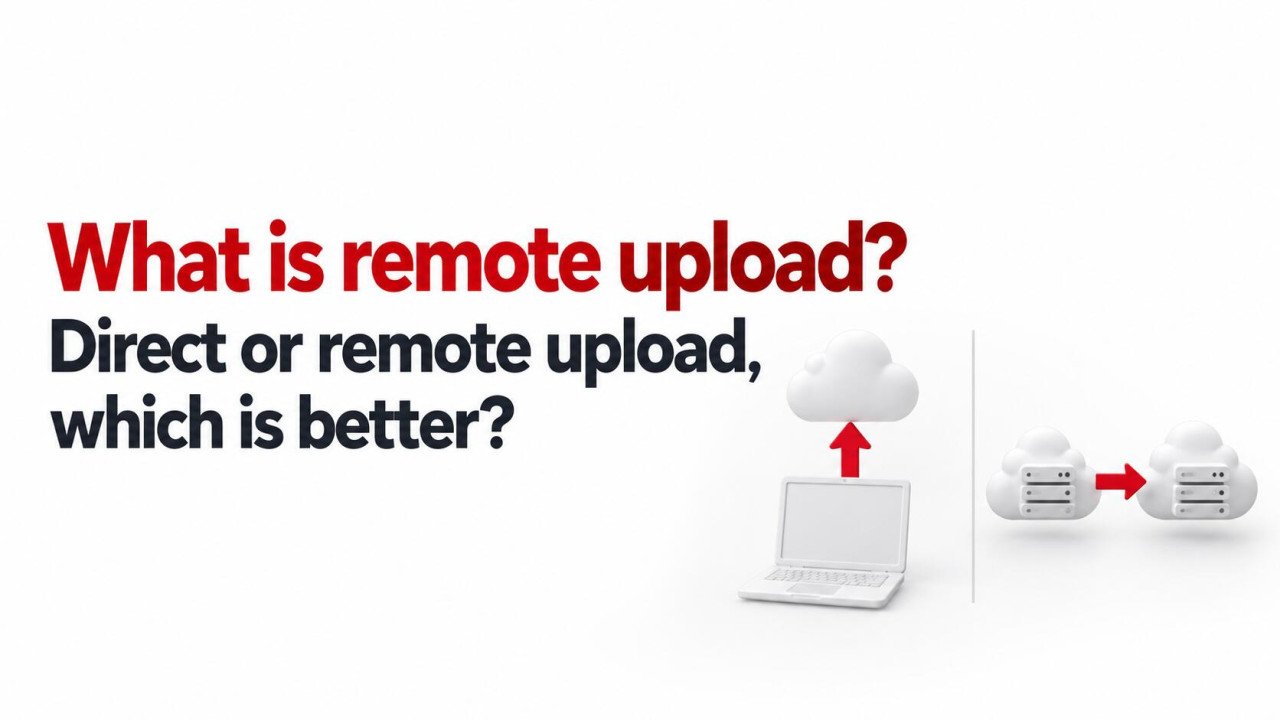
What Is Remote Upload? Direct vs. Remote Upload Explained
Remote upload lets a file-hosting service retrieve a file from an online source instead of receiving it from your computer or phone. You provide a supported file link, and the destination service imports the content.
Which method is better? Choose direct upload when the file is already on your device or needs editing before sharing. Choose remote upload when the correct file is already online, you have permission to copy it, and the destination can access its download URL. Neither method is automatically faster, safer, or better for every situation.
What Is Direct Upload?
In this guide, direct upload means selecting a file from your device and sending it to a hosting service through a browser or application. You might click a file-selection button or drag a document into an upload area.
For example, you finish editing a video on your laptop and upload the exported MP4. The file data travels from your laptop, through your internet connection, to the destination service.
This method is straightforward because you can inspect the local file before sending it. It is also useful when the content does not already exist at a supported online address. Some technical documentation uses “direct upload” more specifically to describe an upload that bypasses an application server, so check the meaning in that context.
What Is Remote Upload?
Remote upload is often called upload by URL or import from URL. In a typical server-side implementation, the destination fetches the file from the source server and saves a copy in your hosting account or upload session.
For example, you have a downloadable product catalog on your own website and want another copy on a file-hosting service. Rather than downloading it to your computer and uploading it again, you submit its supported download address.
The main file transfer occurs between the source and destination systems. Your browser submits the request and may display progress, but it does not normally carry the full file payload in a server-side import.
Remote upload should also be distinguished from synchronization. A one-time import usually creates a snapshot. Changing the original later does not necessarily update the imported copy unless the service explicitly provides that behavior.
Direct Upload vs. Remote Upload: Main Differences
| Factor | Direct upload | Remote upload |
|---|---|---|
| Starting point | A file accessible on your device | A file available from a supported online source |
| What you provide | The selected file | A supported file URL or source connection |
| Main transfer path | Your device to the destination | The online source to the destination |
| Local internet use | Your connection carries the uploaded file | Usually much lower for a server-side import |
| Preparation | You can edit and inspect the local copy first | You must confirm the source contains the intended version |
| Common obstacles | Slow upload speed, connection loss, device sleep | Inaccessible links, expired URLs, source restrictions |
| Useful situation | Sharing newly created or revised work | Copying an existing online file without a local round trip |
Is Remote Upload Faster?
It can be, particularly when your local upload connection is slow. However, the result depends on the source server, destination service, transfer queue, network path, and any speed limits involved.
Consider a 1 GB file that already exists online. Using decimal units, it contains approximately 8,000 megabits. Uploading that file from your device at a steady 10 Mbps takes a theoretical 800 seconds, or 13 minutes and 20 seconds. Real transfers can take longer.
If you must download the file first, that adds another transfer before the upload even starts. Remote upload can avoid this local download-and-upload sequence. But a slow source server or a waiting queue can still make remote import take longer than expected.
For a deadline, test the method with a small authorized file and leave time for a retry. Do not assume the destination’s advertised download speed describes how quickly it can import files from every source.
Does Remote Upload Save Internet Data?
A genuine server-side import can substantially reduce the amount of file data passing through your own connection. If you otherwise download a 1 GB file and upload it again, roughly 2 GB of file payload crosses your local connection, plus transfer overhead.
With remote upload, your device usually sends the URL and receives status information instead. This can be helpful on a metered connection or when a phone has little free storage.
The data still moves across a network. The source may count the download toward its transfer allowance, and the destination may apply storage, import, or usage limits. Remote upload moves the transfer away from your device; it does not make bandwidth or storage requirements disappear.
What Kind of Link Does Remote Upload Need?
A basic URL importer needs an address that returns the actual file in a form it can retrieve. A URL identifies an online resource, but that resource may be a webpage rather than a downloadable file.
A direct file URL might resemble https://example.com/files/catalog.pdf. A page containing a preview and a download button may require extra actions that the importer cannot perform. These are illustrative addresses, not links to test files.
A filename extension is only a clue. An address ending in .pdf can still return an error page, and a valid download address may have no visible extension. What matters is the response and whether the destination supports it.
- Public file links: Often suitable for basic import tools, subject to source restrictions.
- Login-protected links: May fail because the destination does not share your browser session.
- Temporary signed URLs: May work if supported and still valid when the import requests the file.
- Preview or watch pages: Usually unsuitable for a tool that accepts only direct file URLs.
Some services offer authenticated cloud connections instead of public-link imports. Those are separate capabilities. Do not assume that a simple URL field can access every private cloud account.
When Direct Upload Is the Better Choice
Use direct upload when you created the file locally, revised it recently, or need to check its contents before delivery. Examples include a newly exported video, an edited presentation, or a ZIP package containing selected project files.
It is also a sensible fallback when an authorized download is available but the destination cannot import its link. Download the file normally, verify it, and upload the local copy if the service’s rules and your permissions allow that workflow.
Do not put a confidential file on a public website merely to make remote upload convenient. A controlled local upload or an approved private connection may fit the task better.
When Remote Upload Is the Better Choice
Remote upload is useful when the correct file already exists online and downloading it locally would add unnecessary time or data use.
For example, a small business may want to copy its own public instruction manuals from its website to a file-hosting account. A creator may want to import an approved media package from a source they control. In both cases, the source must remain accessible during the transfer.
Check the source version carefully. An import can succeed technically while retrieving yesterday’s export, an incomplete package, or the wrong language edition. Verify the finished copy before distributing its new link.
How to Use Remote Upload on Sooddy
Sooddy displays a Remote upload option for importing a direct link to a public file. Its uploader states that login pages and video watch pages are not supported.
- Confirm that you own the file or have permission to host and share it.
- Copy the source file’s direct download URL.
- Open Sooddy and choose the Remote upload option.
- Paste the URL into the File URL field and follow the displayed checks and upload prompts.
- Keep the window open until the upload finishes, as the page instructs.
- Copy the resulting download link and check the imported file.
Review the size allowance shown in your active uploader and the limits for your account. Remote upload does not bypass the destination’s file rules, storage allowance, or retention settings.
Common Remote Upload Problems
| Problem | Possible explanation | Practical next step |
|---|---|---|
| The link is rejected | It points to a webpage or unsupported source | Use an authorized direct download link or upload a local copy |
| The link works only in your browser | Access depends on your login session | Use an approved supported connection or local upload |
| The import fails after waiting | The URL expired or the source became unavailable | Obtain a fresh authorized link and retry |
| The file exceeds the limit | The destination’s allowance is smaller than the source file | Check the applicable plan or choose another permitted delivery method |
| The wrong content arrives | The URL returned an error page or different file | Inspect the source and verify the imported contents |
| The transfer is slow | The source is throttled or the importer is queued | Check service status and try again later if appropriate |
Protect Source Links and Verify the Result
Treat temporary access links as sensitive when they grant access to private files. AWS, for example, describes presigned URLs as time-limited access mechanisms whose capabilities belong to whoever possesses the link. Submit such links only to trusted services that support them.
Do not paste account passwords or browser cookies into an ordinary URL field. Avoid removing unfamiliar query parameters from an authorized download URL, because those parameters may be needed for access. If you share an error screenshot publicly, hide access tokens and private link details.
After either upload method, confirm the filename, size, and contents. For important transfers, a matching checksum can help verify that the imported copy matches a trusted original.
Neither method inherently makes a file trustworthy or changes your permission to distribute it. Keep independent copies of important material and review the destination’s access settings before sharing.
Frequently Asked Questions
1. Is remote upload always better than direct upload?
No. It is often convenient for accessible files already online. Direct upload is usually simpler for files on your device, newly edited content, or sources that the importer cannot access.
2. Can I close my browser during a remote upload?
Only if the service explicitly supports that behavior. Some imports run independently, while others depend on the active session or page workflow. Sooddy’s displayed instructions say to keep the window open until completion.
3. Does remote upload reduce file quality?
The transfer method itself does not require quality reduction. However, a service may process or convert files. If the original matters, check the stored download rather than judging only a preview.
4. Will deleting the source remove the imported copy?
A completed independent import normally remains separate from the source. However, linked, cached, or synchronized services may behave differently. Confirm that a full copy was stored and remember that the destination has its own retention rules.
5. Can remote upload import any video link?
No. A video watch page is different from a supported direct video file URL. Check the importer’s accepted sources and use only content you are authorized to copy and share.
Choose Based on Where Your File Is
If the file is ready on your device, direct upload is usually the straightforward choice. If it is already online at a supported, authorized source, remote upload can avoid a local download-and-upload round trip. Check access, limits, and the finished copy whichever method you use.


No comments yet. Be the first to join the conversation.