How to Share Sensitive Documents Online More Securely
Sending a document takes seconds. Deciding who should see it, which details they need, and how long access should last deserves a little more attention. A contract, identity document, or employee spreadsheet can cause problems if it reaches the wrong person or remains available after the task is finished.
To share sensitive documents online more securely, minimize the information you send, verify the recipient, use an appropriate sharing service, and restrict access. Add encryption where needed, test the settings, and remove access when the work ends.
No single setting prevents every mistake. The following steps build a practical process for freelancers, small businesses, and individuals who need to exchange private files.
What Makes a Document Sensitive?
A document is sensitive when unauthorized access, changes, or disclosure could harm a person or organization. It does not need a “confidential” label to deserve protection.
- Identity documents, home addresses, and personal contact details
- Employee records, payroll information, and customer lists
- Contracts, unpublished proposals, and internal business reports
- Account details, private correspondence, and recovery information
Start with three questions: Who needs this information? What must they do with it? What would happen if someone else received it? A public brochure and a personnel record should not follow the same sharing process.
1. Share Only What the Recipient Needs
Before choosing a service, reduce the document's contents. Sending less information reduces what could be exposed if the transfer goes wrong.
For example, a supplier checking delivery quantities may need an order summary, not the entire customer database. A consultant reviewing one project may need that project's budget, not a workbook containing every client's finances.
Create a separate sharing copy. Remove unrelated pages, records, and attachments while preserving an appropriate original in your own protected storage. Give the copy a clear, neutral filename that does not expose an identity number or other private detail.
Do not assume hiding a spreadsheet column removes its contents. If the recipient does not need the underlying data, create a clean export containing only the required information and inspect the result.
2. Remove Hidden Information and Apply Real Redaction
Documents can contain information that is not visible during a quick read: comments, tracked changes, author details, hidden text, embedded objects, or extra worksheets.
Microsoft's Document Inspector can help find certain hidden content and personal information in supported Office files. Run it on a copy, review its findings, and check the document again afterward. Its checks have limitations, so inspection is still necessary.
For PDFs, use a proper redaction feature to remove confidential text or images. Drawing a black rectangle over text is not a reliable substitute: the underlying information may remain in the file.
Apply the redactions and save the finished copy. Where available, sanitize the PDF to remove hidden information such as metadata and comments. Adobe documents redaction and sanitization as distinct steps in its PDF tools.
Reopen the exported file. Check every page, search for the removed details, and try selecting text near the redacted area. These checks help catch mistakes, but they do not replace a proper redaction process.
3. Verify the Recipient Before Sending Anything
A secure transfer to the wrong person is still a disclosure. Confirm the full destination address instead of relying on a familiar display name or an autocomplete suggestion.
Pay particular attention when someone requests sensitive documents unexpectedly, changes their email address, or pressures you to send files immediately. Confirm unusual requests through an established contact method, such as a number already recorded in your business directory.
For example, if a person claiming to be your accountant requests payroll files from a new address, contact the accountant using the details you already trust. Replying to the suspicious message does not independently verify the request.
Check group addresses too. A team mailbox or distribution list may include more people than the name suggests.
4. Choose a Sharing Method That Matches the Document
Use your organization's approved service for business information. If an institution provides a secure submission portal, confirm its address independently and use it as instructed.
When comparing services, look for documented protections and usable controls. A provider's general claim of “secure sharing” does not explain who can access files, who manages encryption keys, or how deletion works.
| Feature | Useful protection | Important limitation |
|---|---|---|
| Named-recipient access | Restricts access to specified accounts | A compromised authorized account may still gain access |
| Link password | Adds a barrier to opening a shared link | The link and password can both be forwarded |
| Expiration | Limits how long a particular access route remains usable | Does not erase previously downloaded copies |
| Activity records | Can help review access or permission changes | Available events and retention vary by service |
| File encryption | Protects document contents without the decryption secret | Cannot protect plaintext on a compromised recipient device |
If you use Sooddy for uploading and sharing files, review its current controls and policies before choosing it for confidential documents. Confirm whether it meets your requirements for access, retention, and deletion. Use an approved alternative when essential protections are unavailable or unclear.
5. Restrict Access and Check Folder Permissions
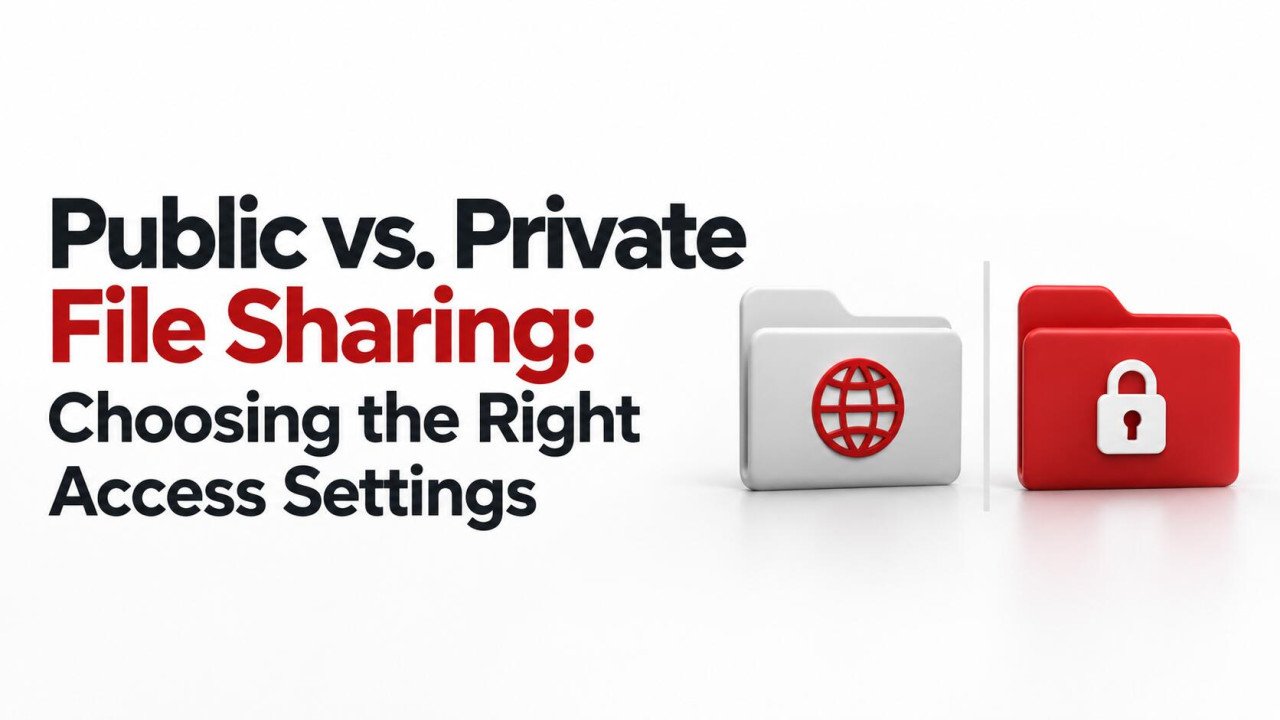
For private documents, prefer sharing with specified recipients over a link that anyone can open. Treat an unrestricted download URL as something that can be copied into another message.
Apply the principle of least privilege: give people only the access needed for their task. Someone reading a completed report usually does not need permission to edit it or invite other users.
Google Drive, for example, distinguishes restricted access from access for anyone holding the link. Its documentation also explains that permissions inherited from a shared folder can affect the files inside it.
Inspect parent folders, group membership, and existing collaborators before uploading. A new file placed in an old project folder may become available to people who no longer belong to the current project.
Where supported, limit resharing and downloading when appropriate. However, view-only access is not a guarantee against copying: someone who can see a document may photograph the screen or reproduce its contents.
6. Understand What Encryption Protects
Encryption makes information unreadable without the corresponding key or secret. Different forms protect different stages of a transfer.
- In transit: Protects data while it travels over a connection, such as HTTPS between your browser and the service.
- At rest: Protects stored data, although a provider that controls the keys may still be able to decrypt it.
- End-to-end: Is designed to keep content readable only at authorized endpoints, depending on the implementation and key management.
For an additional layer, an approved tool can encrypt a file locally before upload. Use a maintained tool with modern encryption, choose a long unique passphrase, and confirm that the recipient can decrypt the format.
A link password and file encryption are different protections. A link password controls an access step at the service; it does not by itself establish that the document is encrypted end to end.
Deliver a decryption passphrase through a separate, verified channel rather than placing it beside the file link. Keep a protected recovery copy of the secret where appropriate. Lost decryption credentials can make a file inaccessible.
7. Protect the Accounts and Devices Involved
Enable multi-factor authentication on your sharing account and the email account used to recover it. Use unique passwords stored in a password manager.
Where supported, choose phishing-resistant authentication such as appropriately configured FIDO security keys or passkeys. CISA identifies phishing-resistant methods as stronger protection against fraudulent sign-in attempts.
Keep your operating system, browser, and document applications updated. Use a trusted device with screen locking and appropriate device protection. Avoid opening sensitive files on shared computers where copies or active sessions may remain.
HTTPS protects the connection to a website; it does not prove the website belongs to the organization you intended to visit. Check the address carefully and do not bypass certificate warnings to complete an upload.
8. Test Access and Set an End Date
Before sending real documents through an unfamiliar workflow, test with a harmless sample. Confirm that the intended recipient can open it and that an unauthorized account cannot.
Opening a restricted link in a signed-out browser can expose accidental public access, but that test alone does not reveal every user who already has permission. Review the actual access list as well.
Set an expiry date where supported, or schedule a manual review. Give the recipient enough time to complete the task, then remove unnecessary access.
Revoking a link prevents future access through that route; it does not retrieve downloads. Deleting a hosted file also does not necessarily mean immediate removal from backups or retention systems. Check the provider's policy and your own retention requirements.
A Practical Example: Sharing a Client Contract
Imagine a small design studio sending a contract to a new client. The working document contains internal comments about pricing and an appendix for a different project.
- Create a separate delivery copy and remove the unrelated appendix.
- Resolve tracked changes, remove internal comments, and inspect hidden information.
- Export the final document and reopen it to check every page.
- Verify the client's email address against the agreed contact details.
- Share through the approved service with only the required permissions.
- Confirm receipt and remove review access when the process is complete.
If signatures are required, use the agreed signing workflow and preserve the completed record according to your business process. Keep the review copy clearly distinguished from the final signed version.
What to Do If You Share With the Wrong Person
Act promptly. Revoke the link or remove the unintended recipient's access, including any access inherited through a folder or group. Record what was shared, when it happened, and which settings were active.
Notify the responsible manager or security contact for business documents and follow the incident process. Review available activity records, but do not treat an absence of logged downloads as proof that nobody viewed or copied the information.
Request deletion from an unintended recipient when appropriate, while recognizing that a request cannot guarantee removal. If the file exposed passwords or other access secrets, replace those secrets through the relevant systems.
Quick Checklist Before You Send
- The recipient and their destination address are verified.
- The document contains only necessary information.
- Redactions are applied and hidden content has been reviewed.
- The sharing method is suitable for the document's sensitivity.
- Access permissions and parent-folder permissions are checked.
- Any decryption secret is shared separately and securely.
- The recipient can open the file using the agreed process.
- An access review or expiry date is recorded.
Frequently Asked Questions
Is a password-protected link enough for sensitive documents?
It can help, but it is only one control. Consider recipient verification, encryption, account protection, and the sensitivity of the contents. Anyone who obtains both the link and password may be able to open the file.
Is email or a file-sharing link more secure?
It depends on the configuration. A restricted link may offer access revocation and expiry, while an attachment creates another copy. Properly implemented encrypted email can also protect documents. Choose the approved method that provides the controls your situation requires.
Can I stop someone from copying a document after opening it?
You can limit convenient download, print, or copy functions where supported, but you cannot reliably prevent every form of capture. Share only necessary information with trusted recipients and assume visible content could be reproduced.
Does deleting a shared file remove the recipient's copy?
No. Deletion or revoked access generally affects the hosted copy and future access. A previously downloaded file may remain on the recipient's device, in their backups, or in another location where they saved it.
Can a free file-hosting service handle confidential files?
Price alone does not establish suitability. Evaluate the service's documented protections, access controls, retention, and organizational approval. If required controls cannot be verified, use a service approved for that type of document.
Make Secure Sharing a Repeatable Habit
The most useful document-sharing process is one people can follow consistently. Prepare a clean copy, verify the recipient, restrict access, and close the sharing window when the task ends. A short checklist repeated for every sensitive transfer can catch mistakes before private information leaves your control.
No comments yet. Be the first to join the conversation.