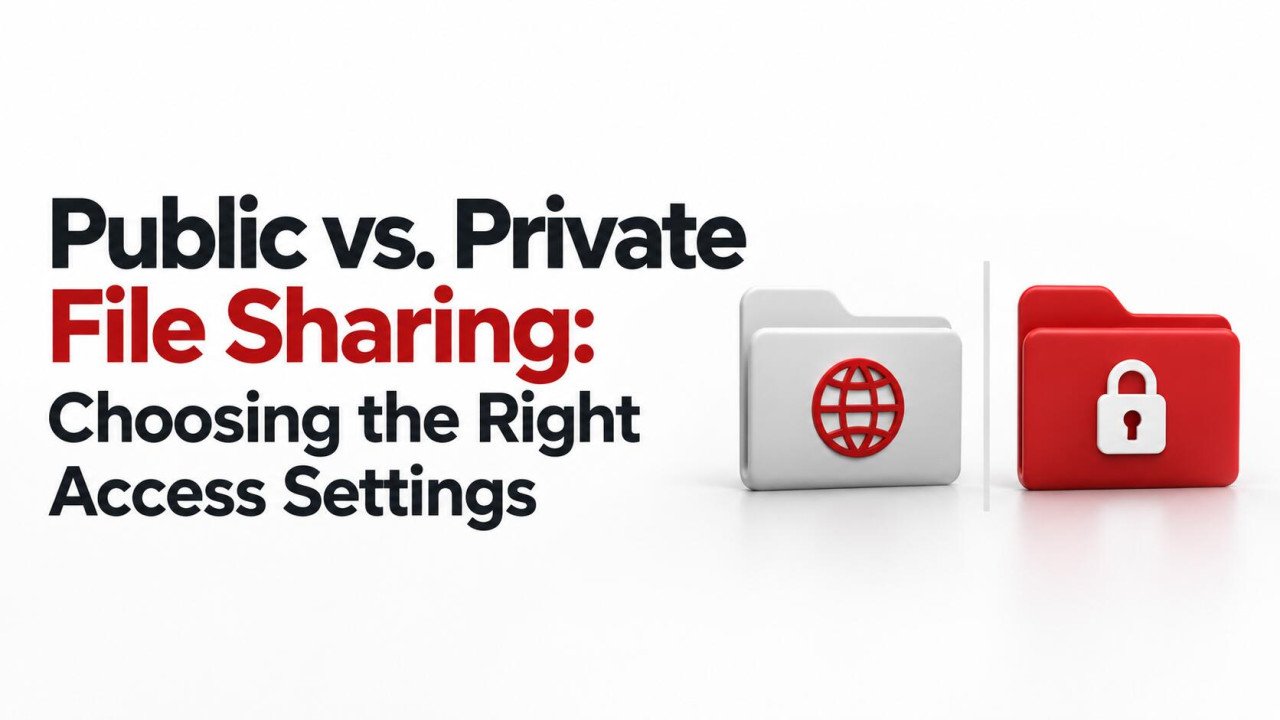
Public vs. Private File Sharing: Choosing the Right Access Settings
Sending a file link takes seconds. Deciding who should be able to open it deserves a little more thought. A product brochure may belong on your website, while a customer proposal should reach only a few people. Using the same sharing settings for both creates avoidable problems.
Public vs. private file sharing is mainly a question of audience and control. The right choice lets intended recipients get their work done while keeping everyone else outside the boundary. This guide explains common access options, their limits, and a practical process for choosing settings before you send a link.
What Is Public File Sharing?
Public file sharing makes a file available to a broad audience without requiring individual approval for each recipient. Common examples include a download button on a website, a published document, or an unrestricted link that anyone holding it can open.
These options are useful for material meant to circulate: instruction manuals, event schedules, press photographs, and free resources. Recipients can usually pass the link to someone else without asking the owner to add another person.
However, an openly published file and an unlisted link are not identical. A file linked from a public webpage is intentionally easy to discover. An “anyone with the link” file may be less visible, but possession of the link can still be enough to access it. Lack of publicity is not the same as permission checking.
What Is Private File Sharing?
Private file sharing limits access to an approved audience, such as named clients, a project group, or selected employees. A recipient may need to sign in or complete another identity verification step before opening the file.
Two concepts help explain this process. Authentication checks identity. Access control determines what that identity is allowed to access or do. A person can successfully sign in and still lack permission to open your document.
“Private” does not automatically mean that the storage provider cannot read the content, that administrators have no access, or that recipients cannot make copies. Those are separate questions involving encryption, administrative privileges, and the service’s actual controls.
Compare the Main Access Options
Services use different labels, so check the explanation beside each setting. This table describes common patterns rather than promising that every platform works the same way.
| Access option | Who can open it? | Useful example | Main limitation |
|---|---|---|---|
| Publicly published | The audience allowed by the publication settings | A public product guide | Content may circulate beyond its original location |
| Anyone with the link | Anyone who obtains the link, subject to extra controls | An approved promotional download | The link can be forwarded |
| Organization link | Eligible organization members who meet the link’s conditions | A general employee handbook | The eligible audience may exceed the project team |
| Specific people | The approved recipients after required verification | A client proposal | Recipients must use the expected identity |
| Password-protected link | People holding the link and its password | A temporary transfer with an extra access barrier | The password can also be shared |
Choose Audience, Permissions, and Duration Separately
A sharing decision has three parts: who can open the file, what they can do, and when their access should end. Choosing a private audience does not automatically select safe editing permissions or a suitable expiry date.
- Audience: Identify the people or group that needs access.
- Permissions: Decide whether they need to read, comment, download, or edit.
- Duration: Decide whether access is ongoing or tied to a task.
For example, a client reviewing a design may need comment access for ten days. A production partner receiving approved artwork may need to download it but should not change the original. A teammate maintaining a working spreadsheet may need ongoing editing access.
This follows the principle of least privilege: grant the access needed for the job. Start with the actual task instead of choosing the broadest available setting for convenience.
When Public Sharing Makes Sense
Choose public sharing when wider distribution supports the file’s purpose and the content is approved for that audience. A restaurant menu, community event poster, or product installation guide often benefits from easy access without account registration.
Prepare a publication copy before making it available. Remove internal comments, unnecessary personal details, draft pricing, and material that was included only for colleagues. Check the exported file itself; reviewing the original document alone can miss problems in the final download.
Give public downloads a clear title, version, and responsible owner. If your business updates a specification sheet, decide whether the existing link should serve the new version or whether customers need a separate historical copy. That decision prevents confusion about which document is current.
Public downloads also need maintenance. A discontinued promotion left online can cause customer disputes even when it contains nothing confidential. Review public files for accuracy as well as exposure.
When Private Sharing Is the Better Choice
Use restricted access when the document contains information intended for a defined relationship or task. Examples include client proposals, unpublished work, supplier quotations, employee records, and internal planning documents.
Think carefully about the size of the audience. “Inside the company” may still be too broad for a salary worksheet. A project group can also become too broad if former contractors remain members or unrelated teams are added later.
A useful exercise is to finish this sentence: “This person needs this file because they are responsible for…” If you cannot complete it clearly, reconsider whether access is necessary.
For recurring work, create folders around distinct audiences. Keep a client’s approved deliverables separate from internal budgets and staff discussions. This makes routine sharing easier because people do not have to remember which individual documents contain exceptions.
Understand What Extra Controls Can and Cannot Do
Passwords add a barrier, but they do not identify a person. A recipient can forward both the link and the password. Use a unique password where this option is appropriate, and share it through a separate trusted channel. For sensitive collaboration, consider whether named recipient access better matches your needs.
Expiry limits an access window. Set it around a realistic deadline, allowing for time zones and review schedules. Expiry does not retrieve a file someone already downloaded, and it may affect only one link rather than every permission on the file.
Download restrictions reduce convenient copying. They are not a guarantee that visible information cannot be captured. Someone may take a screenshot, photograph the screen, or reproduce the content manually. Share only information the recipient is entitled to see.
Encryption addresses a different problem. Encrypted connections help protect data during transfer, but they do not correct an overly broad audience setting. Likewise, a “private” link alone is not evidence of end-to-end encryption.
A Step-by-Step Checklist Before Sharing
- Open the exact file. Confirm its contents, version, and filename. Remove information the recipient does not need.
- Define the audience. Choose public distribution, an appropriate group, or specific recipients based on the purpose.
- Check the surrounding folder. Look for inherited access, group membership, and other active links that may broaden the audience.
- Select the minimum useful role. Give editing access only when someone must change the source. Consider comments for review.
- Set a review date. Use automatic expiry where available, or create a reminder to remove temporary access.
- Test the result. Check both intended access and unintended access before distributing the link widely.
- Record who owns the share. Someone should be responsible for updates, access requests, and eventual removal.
If you use Sooddy for file hosting, review the sharing controls available for your chosen upload before sending its link. Confirm whether they meet your audience, permission, and access-duration needs; do not assume a feature is available simply because another service offers it.
Test Access Without Relying on Your Own Login
The owner’s browser is a poor test of recipient permissions because the owner already has access. Start by opening the link in a signed-out browser session to see whether anonymous access is possible.
That check answers only one question. A file can block anonymous visitors while still allowing a larger signed-in audience than intended. Where practical, also test with an account outside the approved group and have an intended recipient confirm that their normal account works.
Check the available actions too. Can a reviewer edit when they should only comment? Does opening the folder reveal unrelated files? If the result is wrong, fix the audience or permission setting before trying again.
Three Everyday Sharing Decisions
A public workshop handout: You want attendees to pass it to friends. An approved, read-only public download fits that purpose. Keep the registration list and payment records in a separate restricted location.
A proposal for one customer: Share the proposal with the named customer contacts who need to review it. Give comment access if feedback is required. Set a review date after the proposal deadline, and keep your internal cost calculations elsewhere.
A freelancer’s working folder: Provide editing access to the project materials they must update. Avoid sharing the entire business workspace. When the assignment ends, transfer responsibility for the final files and remove temporary permissions.
Changing Access After a Link Has Been Sent
When access is no longer needed, review the file’s complete access list. Removing one person or disabling one link may leave other routes available through groups, folders, or separate links. Check those routes before assuming the file is fully restricted.
Publication can require a separate action. For example, Google’s documentation distinguishes stopping web publication from changing collaborator sharing permissions. Review both if you previously published a document and also shared its working version.
If you accidentally exposed confidential content, restrict the active access promptly and notify the person responsible for handling the issue in your organization. Record what was exposed and when. Available activity logs may help, but a lack of recorded downloads does not prove nobody saw or copied the file.
Frequently Asked Questions
1. Is “anyone with the link” private?
It is not equivalent to access restricted to named recipients. The link may be unlisted, but someone who obtains it can usually open the file under the link’s conditions. Use it when forwarding would be acceptable.
2. Will a public file automatically appear in search engines?
Not necessarily. Search visibility depends on the service, publication settings, and how the link becomes discoverable. However, absence from search results does not prevent someone with a working link from accessing or redistributing the content.
3. Does view-only access prevent copying?
No. It generally prevents editing the original, while downloading and copying depend on separate controls. Even with restrictions, recipients may capture visible information. Treat view-only access as a permission level, not a promise that copies cannot exist.
4. Can I make a shared file private later?
Usually, you can restrict future access through the service’s sharing controls. Review all active permissions and any publication settings. Changing access does not erase copies already saved by recipients.
5. Which setting should a small business use by default?
A practical default for working business files is restricted access, with permissions expanded deliberately when needed. Keep approved public resources in a separate location so employees can distribute them easily without exposing internal material.
Choose Settings That Match the File’s Purpose
Make public material easy to reach and private material available to the people who need it. Before sending any link, confirm the audience, allowed actions, and access period. A short check at that moment is easier than untangling permissions after the file has circulated.
No comments yet. Be the first to join the conversation.